60 — 用 R3F 制作 3D 文字
简介
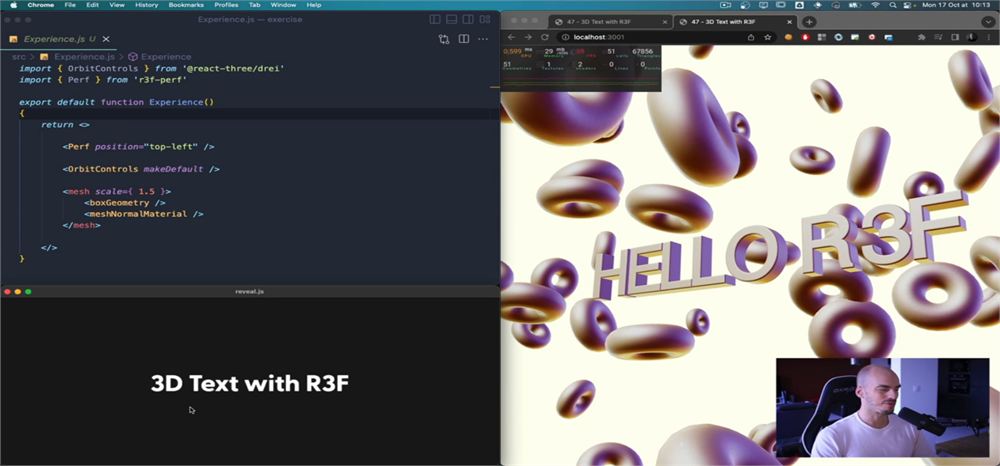
我们现在已经掌握了足够的知识,可以开始用 R3F 构建一些小体验了,而且我们会从简单地复刻之前的一些课程开始。
因为我们已经知道它在原生 Three.js 中是如何工作的,你会发现这将变得超级简单而且快得多。不过,我们还会在过程中发现一些新特性。
我们要用 R3F 复刻的第一课是 3D 文字。
搭建
起始搭建比之前的课程还要简单。
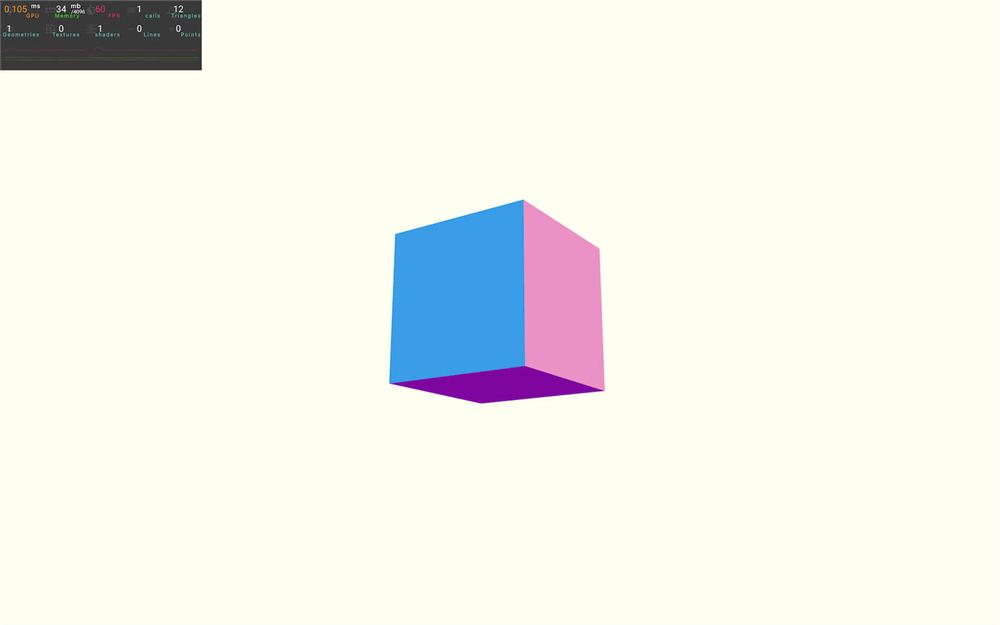
我们在场景中心有一个立方体,还有 OrbitControls 让我们可以环绕旋转,以及 Perf 用来监控性能。
文字
让我们从主 component 开始,创建 3D 文字。
Text3D 辅助工具
正如上一课所讨论的,我们需要使用 TextGeometry。
幸运的是,drei 提供了一个名为 Text3D 的辅助工具来实现它。
在 Experience.jsx 中,从 @react-three/drei 导入 Text3D:
import { Text3D, OrbitControls } from '@react-three/drei'要使用 Text3D,我们需要提供一个 typeface font。
在 /public/fonts/ 文件夹中提供了一个名为 helvetiker_regular.typeface.json 的 font。
如果你愿意,可以用这个网站 http://gero3.github.io/facetype.js/ 创建你自己的 typeface font
别忘了,如果你打算使用某个 font(尤其是在线 font),你必须拥有这样做的权利。请检查你即将使用的 font 的许可协议。
在 JSX 中的任意位置添加 <Text3D>,并在 font 属性中提供 font 路径。你在开标签和闭标签之间写的文本将用于生成几何体:
export default function Experience()
{
    return <>

        {/* ... */}

        <Text3D font="./fonts/helvetiker_regular.typeface.json">
            HELLO R3F
        </Text3D>

    </>
}
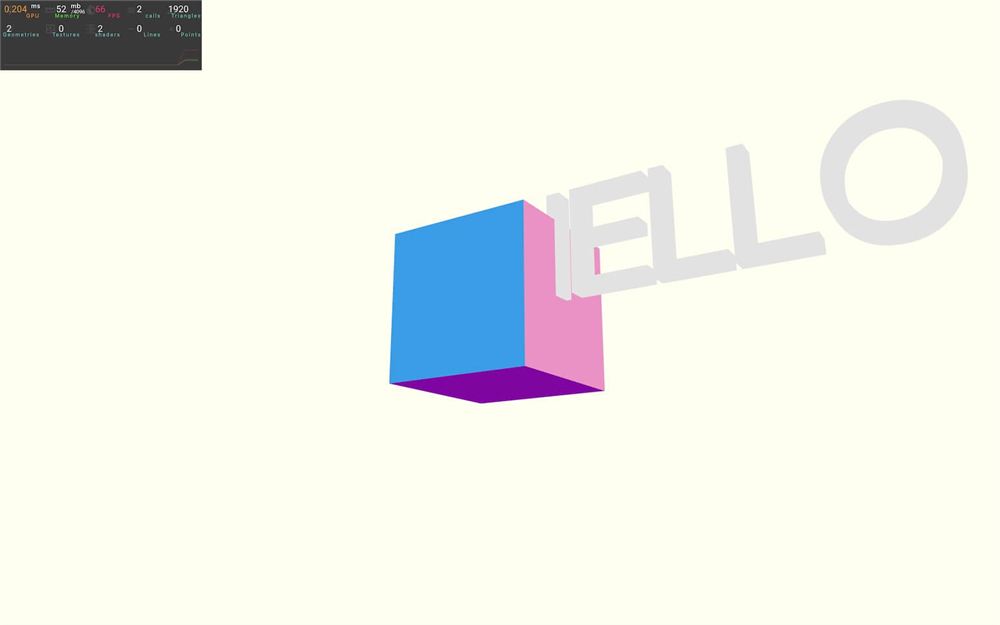
你应该已经能看到文字了。
默认情况下会应用一个 MeshBasicMaterial,但我们可以通过提供另一个材质来更改它。
让我们先用一个 <meshNormalMaterial />,之后再把它替换为 matcap 材质:
<Text3D font="./fonts/helvetiker_regular.typeface.json">
    HELLO R3F
    <meshNormalMaterial />
</Text3D>
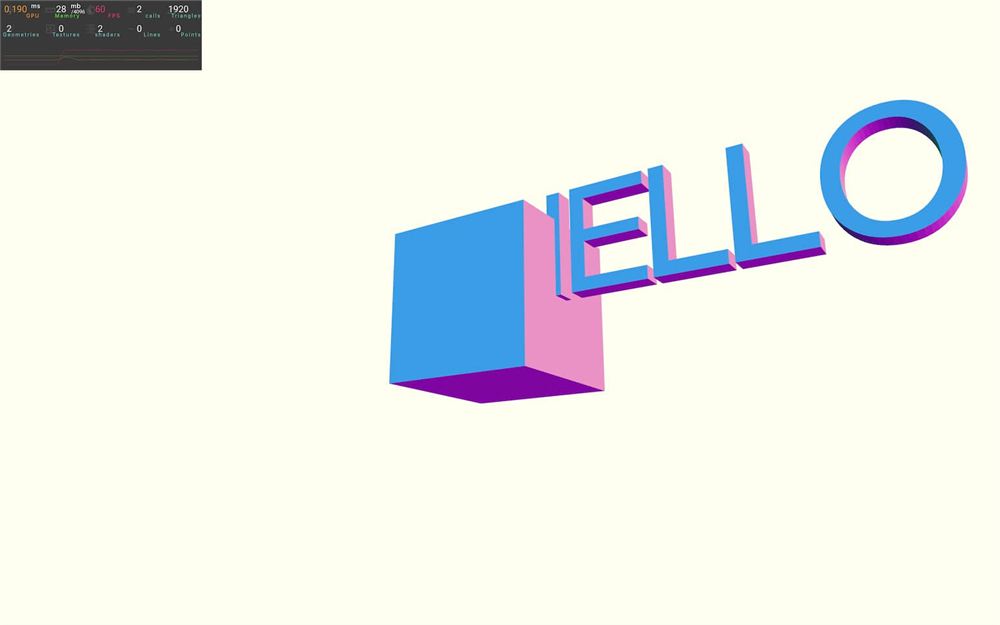
现在我们有了点东西,可以移除这个立方体 <mesh>:
export default function Experience()
{
    return <>

        <Perf position="top-left" />

        <OrbitControls makeDefault />

        <Text3D font="./fonts/helvetiker_regular.typeface.json">
            HELLO R3F
            <meshNormalMaterial />
        </Text3D>

    </>
}
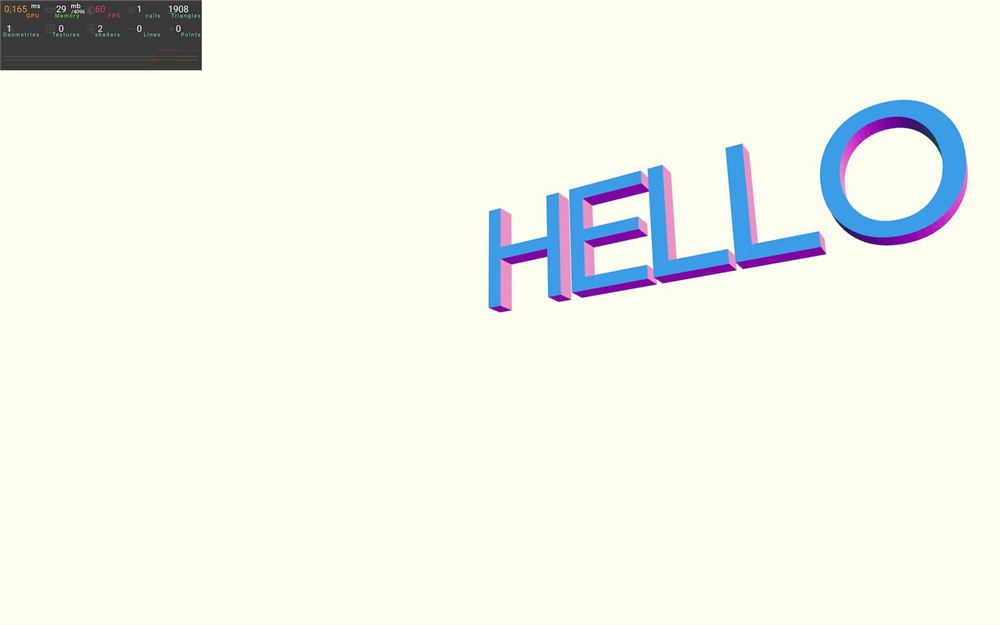
居中
我们可以使用在 3D 文字 课程中用过的相同技巧来将几何体居中,但我们也可以使用来自 drei 的 Center 辅助工具。
从 @react-three/drei 导入 Center:
import { Center, Text3D, OrbitControls } from '@react-three/drei'并将它添加到 <Text3D> 周围:
<Center>
    <Text3D font="./fonts/helvetiker_regular.typeface.json">
        HELLO R3F
        <meshNormalMaterial />
    </Text3D>
</Center>
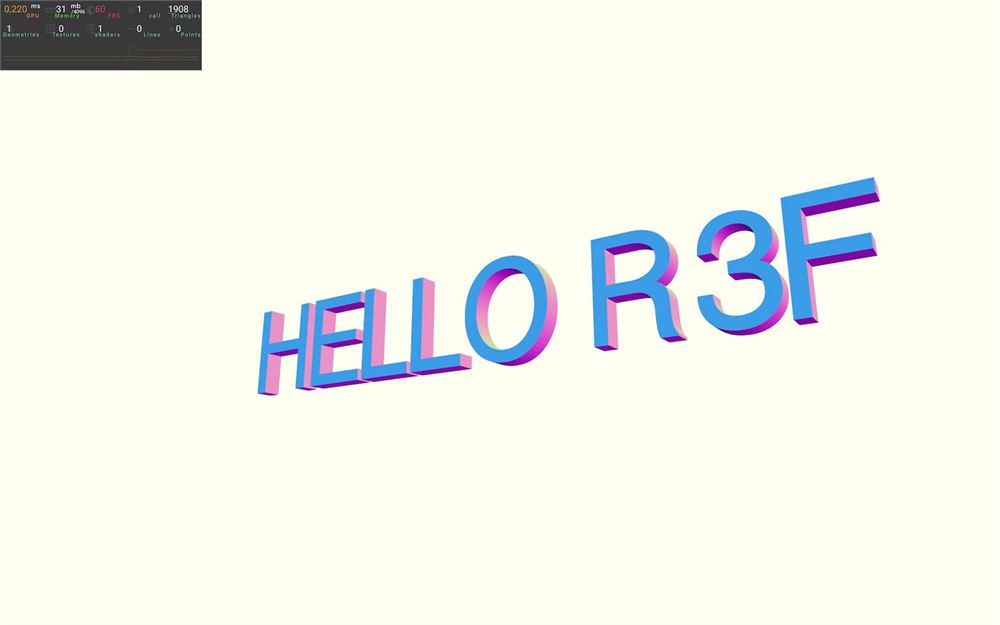
很简单。
参数
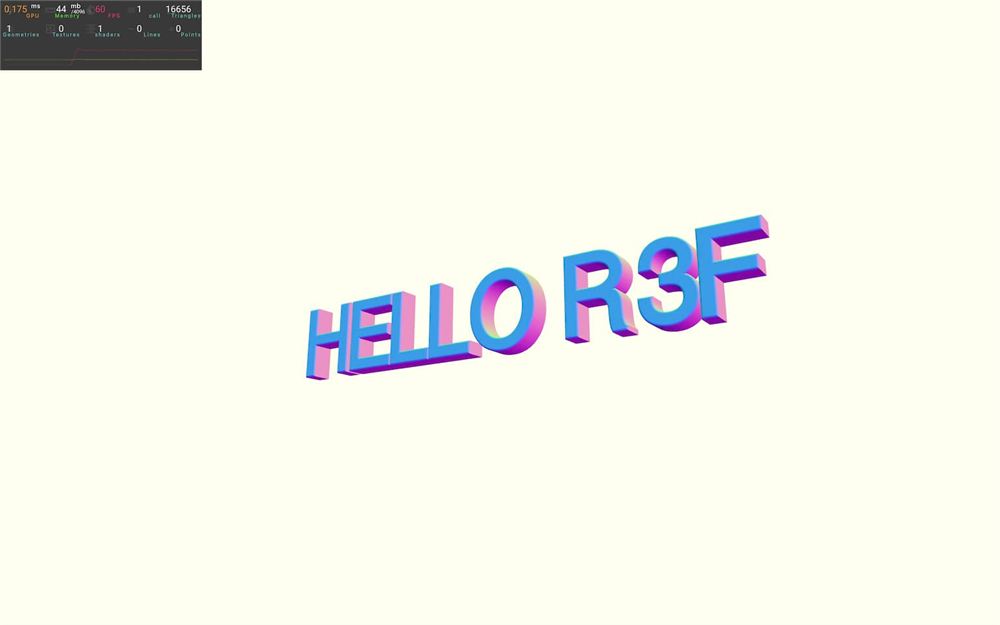
我们可以用来创建 TextGeometry 的所有参数都可以作为属性来设置。
既然我们已经在 3D 文字 课程中讨论过它们了,那我们就偷懒,按如下方式设置:
<Center>
    <Text3D
        font="./fonts/helvetiker_regular.typeface.json"
        size={ 0.75 }
        height={ 0.2 }
        curveSegments={ 12 }
        bevelEnabled
        bevelThickness={ 0.02 }
        bevelSize={ 0.02 }
        bevelOffset={ 0 }
        bevelSegments={ 5 }
    >
        HELLO R3F
        <meshNormalMaterial />
    </Text3D>
</Center>
Matcap 材质
是时候实现我们的 matcap 材质了。
首先,我们需要加载 matcap 纹理。我们会在未来的课程中看到如何在 R3F 中加载纹理,但在这节课中我们将使用一种非常特定的技巧。
我们将使用一个名为 useMatcapTexture 的 drei 辅助工具,它会从这个仓库 https://github.com/emmelleppi/matcaps 自动加载 matcap。
注意,不建议在生产环境中使用这种技巧,因为我们依赖于提供纹理的服务器。
从 @react-three/drei 导入 useMatcapTexture:
import { useMatcapTexture, Center, Text3D, OrbitControls } from '@react-three/drei'用以下参数调用它:
export default function Experience()
{
    const matcapTexture = useMatcapTexture('7B5254_E9DCC7_B19986_C8AC91', 256)
    console.log(matcapTexture)

    // ...
}
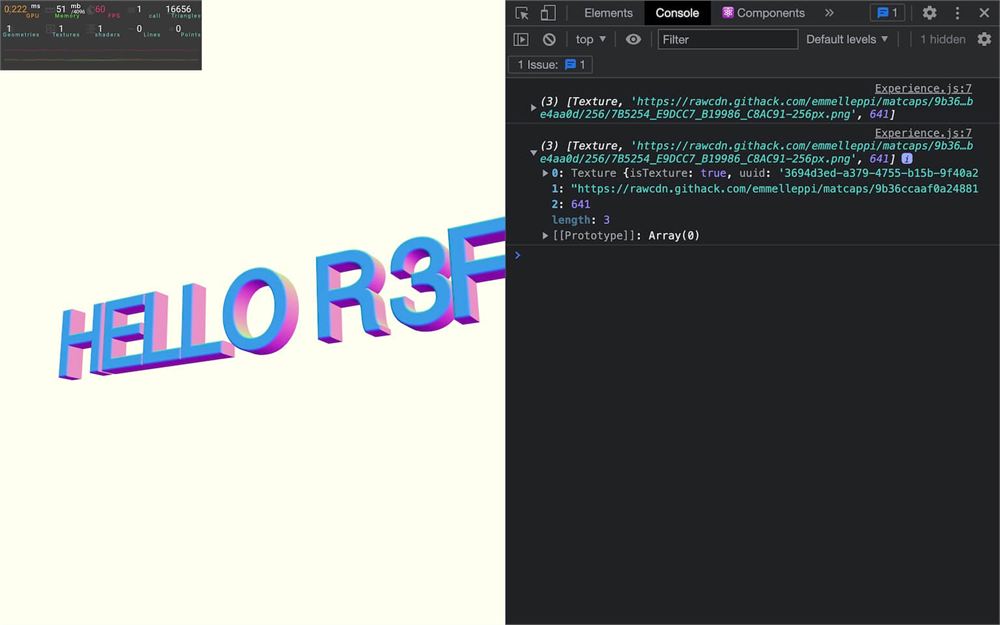
你可能会注意到,我们在控制台里记录的所有内容都会被记录两次。是 <Text3D> 触发了我们 component 的重新渲染。没什么大不了的,只是在查看日志时要注意这一点。
第一个参数是 matcap 的名称。
你可以从这个仓库中找到各种 matcap 的名称:https://github.com/nidorx/matcaps/blob/master/PAGE-17.md#7b5254_e9dcc7_b19986_c8ac91(这只是众多页面中的一个)。
第二个参数是所需的宽度。我们可以在 64、128、256、512、1024 之间选择
在我们的例子中,256 已经绰绰有余,出于性能考虑,你应该尽量使用尽可能小的尺寸。
如果你查看控制台中记录的内容,你会看到 useMatcapTexture 返回一个数组,而且只有第一个值(实际的纹理)对我们重要。
我们可以对它进行解构,只取出第一个值:
const [ matcapTexture ] = useMatcapTexture('7B5254_E9DCC7_B19986_C8AC91', 256)
console.log(matcapTexture)
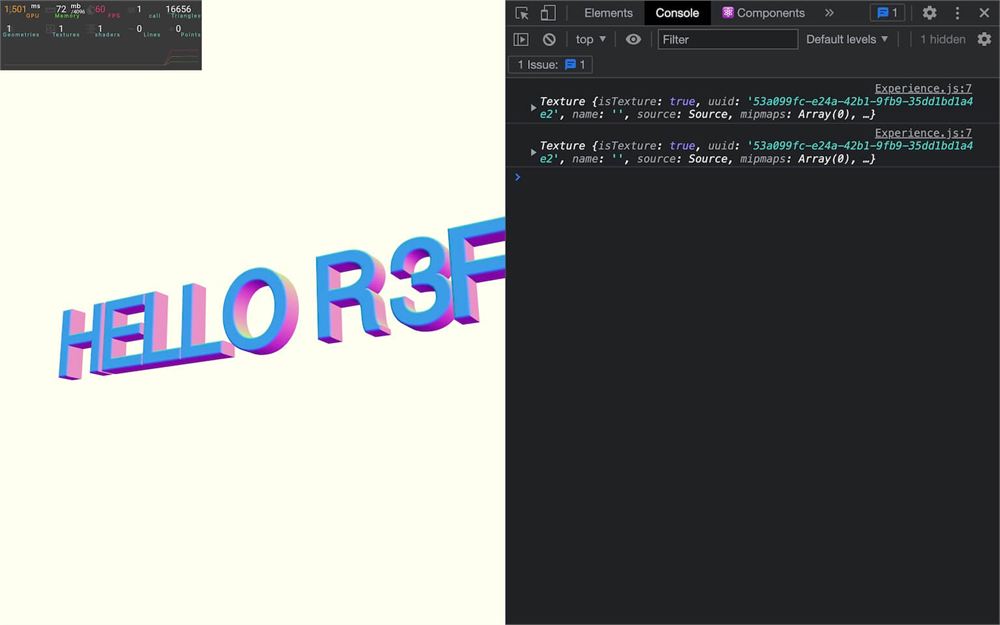
现在我们有了纹理,可以把 <meshNormalMaterial> 替换为 <meshMatcapMaterial>,并在 matcap 属性上使用 matcapTexture:
<meshMatcapMaterial matcap={ matcapTexture } />
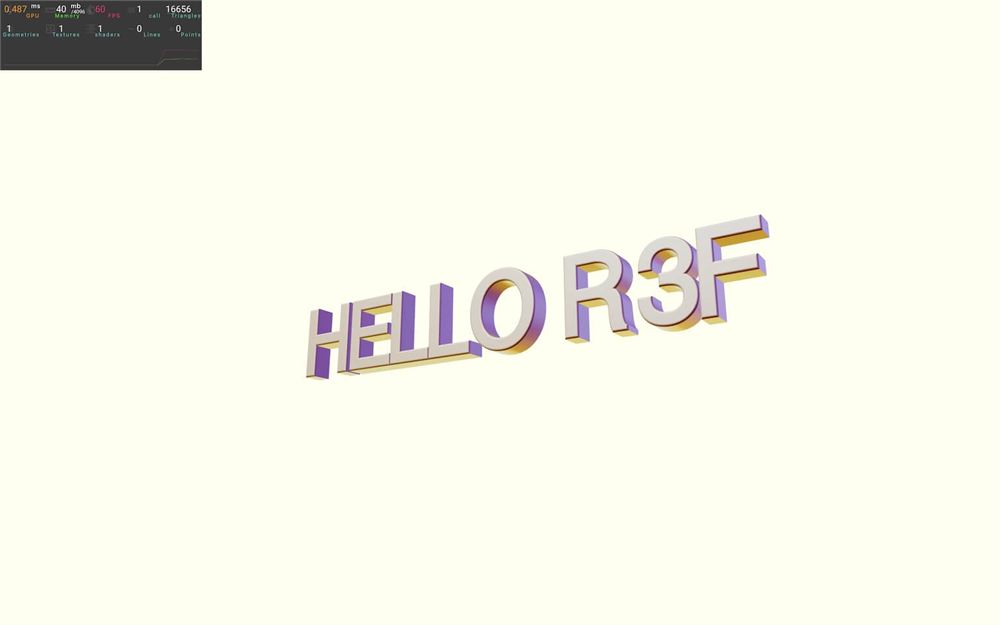
在这个例子中,我们将坚持使用明亮的颜色,以便与原来的 3D 文字 稍有不同。你可以随意更改搭建、更改渲染器的背景,并测试其他 matcap。
甜甜圈
正如 Homer Simpsons 所说,“甜甜圈。还有什么它们做不到的吗?”
生活中我们需要甜甜圈,在 WebGL 中也是如此。
第一个甜甜圈
我们先只创建一个甜甜圈作为开始。
创建一个里面带有 <torusGeometry> 的 <mesh>,并复制我们为文字使用过的 <meshMatcapMaterial>:
export default function Experience()
{
    // ...

    return <>

        {/* ... */}

        <mesh>
            <torusGeometry />
            <meshMatcapMaterial matcap={ matcapTexture } />
        </mesh>

    </>
}
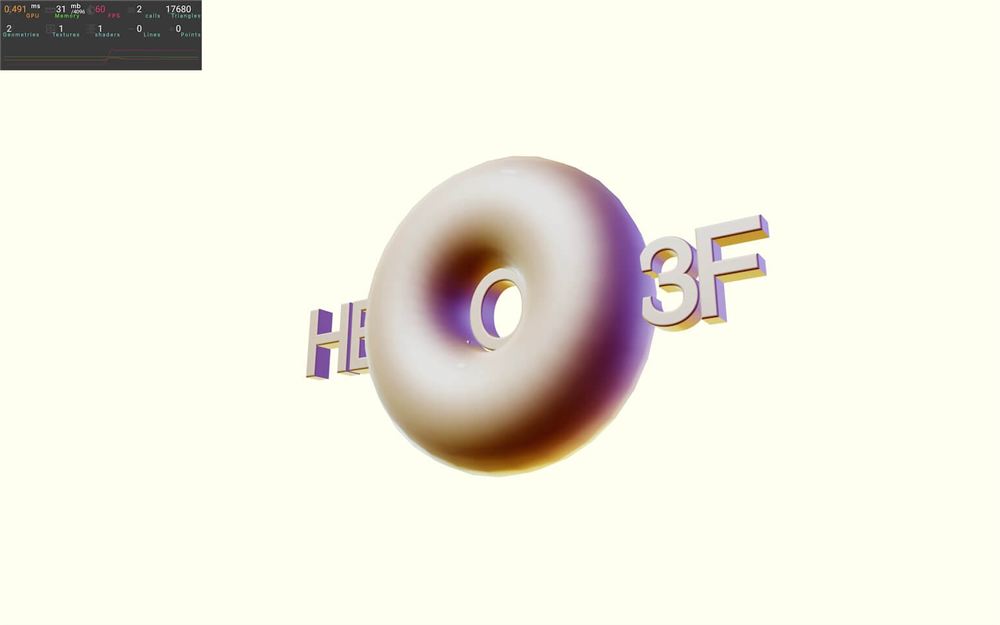
这是一个漂亮又厚实的甜甜圈。
<torusGeometry /> 的默认设置让它看起来已经足够好了。不过,如果你想调整几何体,可以使用 args 属性来做到。
多个甜甜圈
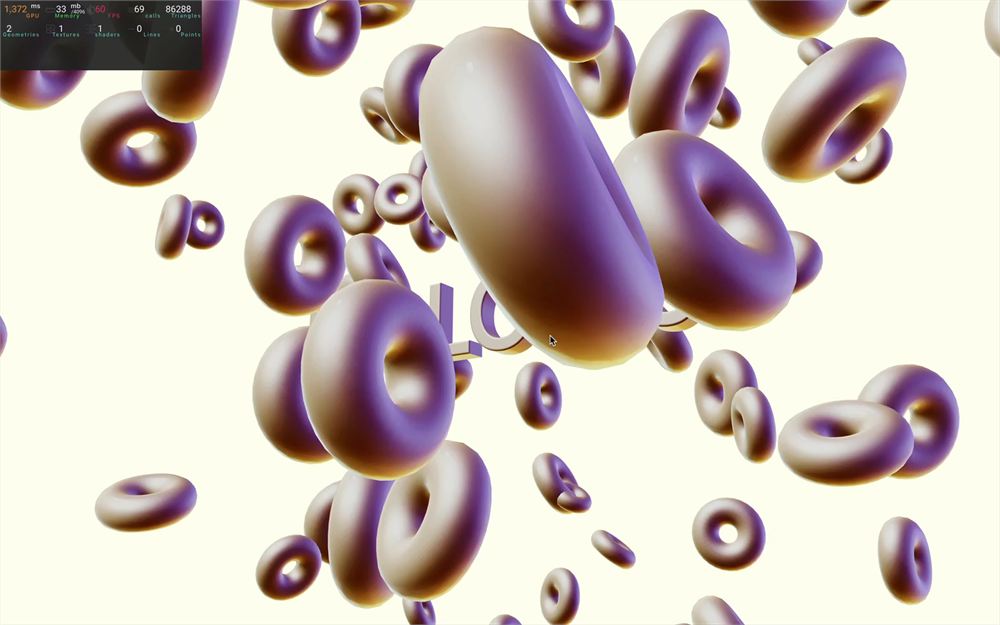
这个甜甜圈很酷,但我们怎么才能拥有一百个呢?
我们可以复制它并尝试随机放置它们,但这会花费很长时间,而且可能看起来不太随机。相反,我们需要做一个循环并随机放置它们。
不幸的是,正如我们之前看到的,我们无法在 JSX 中做 for 循环。
有多种替代方案,我们已经见过一种,就是使用 map 方法。但 map 意味着我们需要一个数组。而且因为我们需要 100 个甜甜圈,所以需要一个长度为 100 的数组。我们并不真正关心这个数组里面是什么,只要它有 100 个长度就行。
就在 return 之前小小地实验一下。
创建一个 tempArray:
export default function Experience()
{
    // ...

    const tempArray = []
    console.log(tempArray)

    return // ...
}
这个数组目前里面没有任何元素。我们希望它的长度为 100,可以用 Array(100) 代替 [] 来实现:
const tempArray = Array(100)
console.log(tempArray)
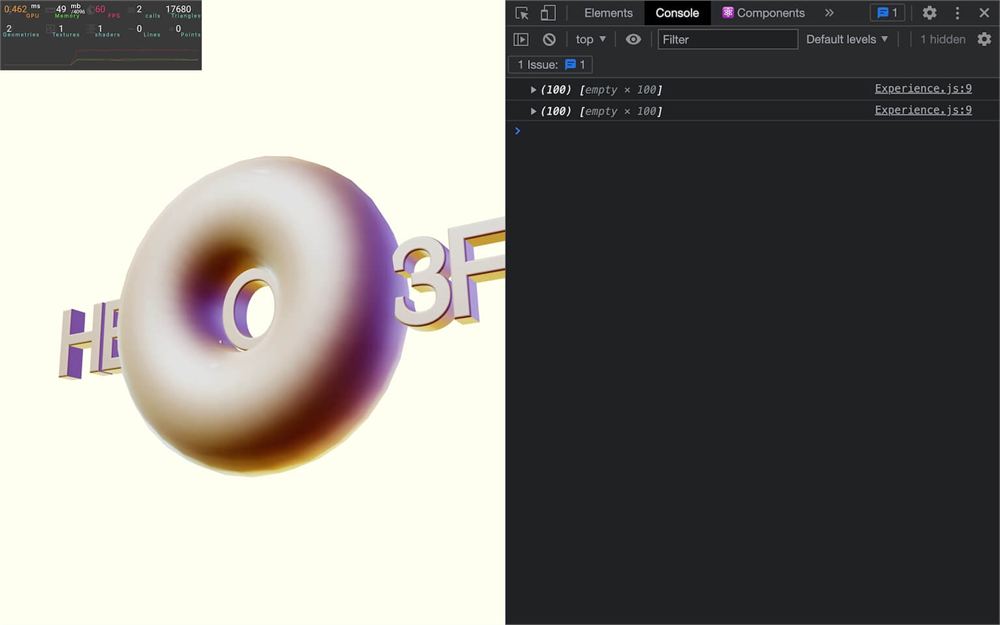
你可能注意到数组被记录了两次,这是因为我们的 component 正在重新渲染。
这是因为 component 中某些响应式数据发生了变化,而在这个例子中,它是由 <Text3D> 引起的。当 font 加载完成时,几何体被创建,场景必须被更新。
这实际上是一种正常的行为。我们可以通过使用 <Suspense> 包裹 <Text3D>,让 component 在渲染前等待 <Text3D>,但这其实没什么大不了的,而且它能让场景的其余部分(甜甜圈)在 font 加载时保持可见,这就是为什么我们打算保持这样。
我们现在有一个长度为 100 个元素的数组。很简单?不幸的是,我们无法对它进行 map。
如果我们尝试,控制台里什么也得不到:
const tempArray = Array(100)
tempArray.map(() =>
{
    console.log('value')
})
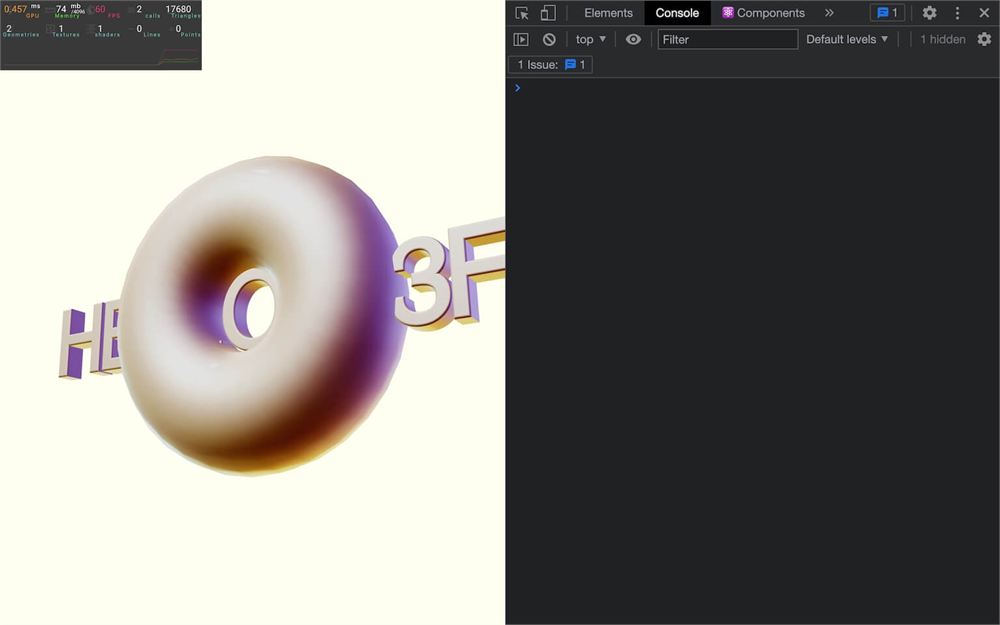
这是因为,尽管它的长度是 100,它仍然被认为是空的。
为了解决这个问题,我们可以基于那个数组的值创建一个新数组。
要获取数组的值(不是数组本身,而只是里面的内容),我们可以使用展开运算符:
const tempArray = [...Array(100)]
tempArray.map(() =>
{
    console.log('value')
})
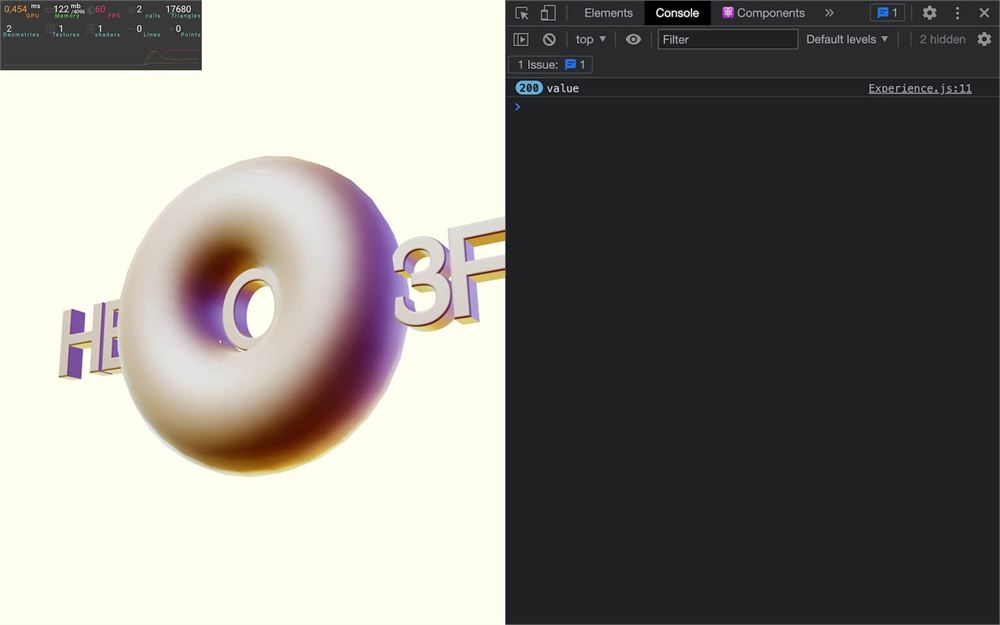
(再说一次,如果你看到两倍的数量,那是因为 component 正在重新渲染)
奇怪的是,我们得到的结果数组里填满了一百个 undefined 实例,而且我们可以对它进行循环(欢迎来到 JavaScript)。
注意,创建数组还有其他方法,但我们会在本章后面看到。
移除 tempArray。
让我们把它转换到 JSX 中:
{ [...Array(100)].map(() =>
    <mesh>
        <torusGeometry />
        <meshMatcapMaterial matcap={ matcapTexture } />
    </mesh>
) }
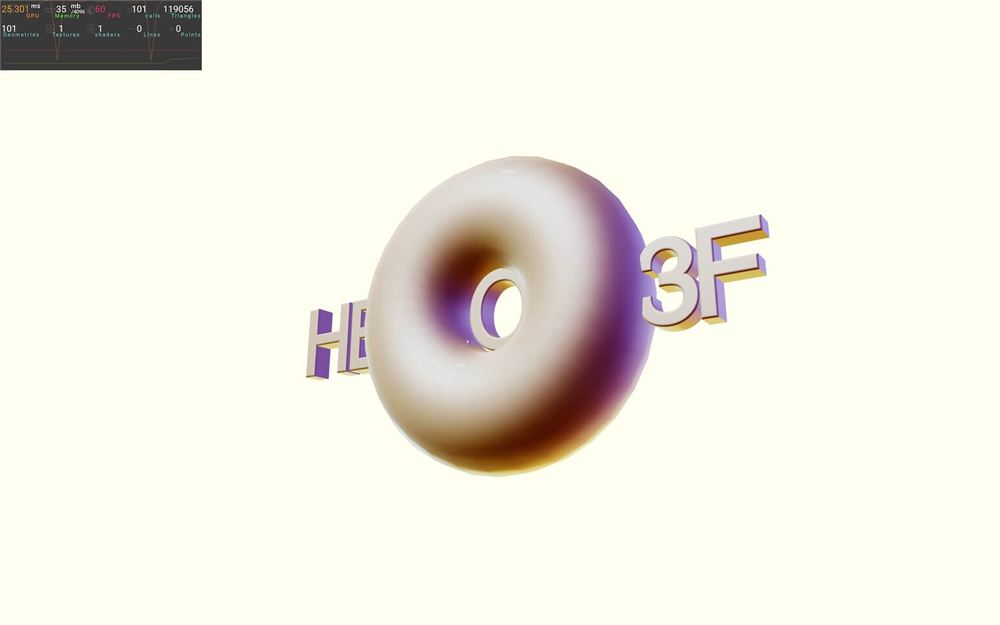
我们提供给 map 的函数返回 <mesh>,结果是 100 个甜甜圈一个叠一个。
让我们给 position 添加一些随机性:
{ [...Array(100)].map(() =>
    <mesh
        position={ [
            (Math.random() - 0.5) * 10,
            (Math.random() - 0.5) * 10,
            (Math.random() - 0.5) * 10
        ] }
    >
        <torusGeometry />
        <meshMatcapMaterial matcap={ matcapTexture } />
    </mesh>
) }
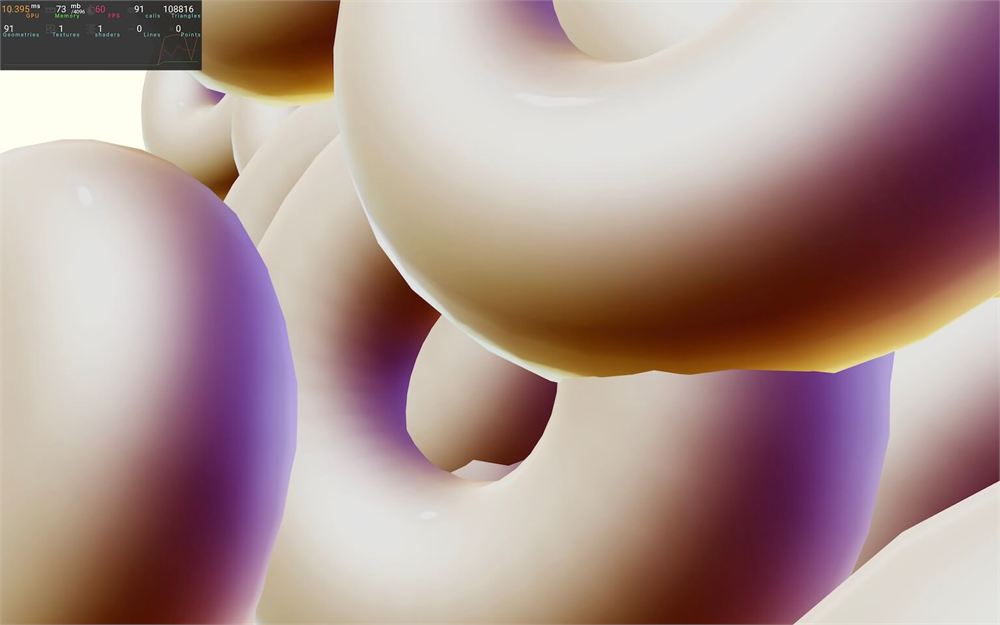
再给 scale 添加:
{ [...Array(100)].map(() =>
    <mesh
        position={ [
            (Math.random() - 0.5) * 10,
            (Math.random() - 0.5) * 10,
            (Math.random() - 0.5) * 10
        ] }
        scale={ 0.2 + Math.random() * 0.2 }
    >
        <torusGeometry />
        <meshMatcapMaterial matcap={ matcapTexture } />
    </mesh>
) }
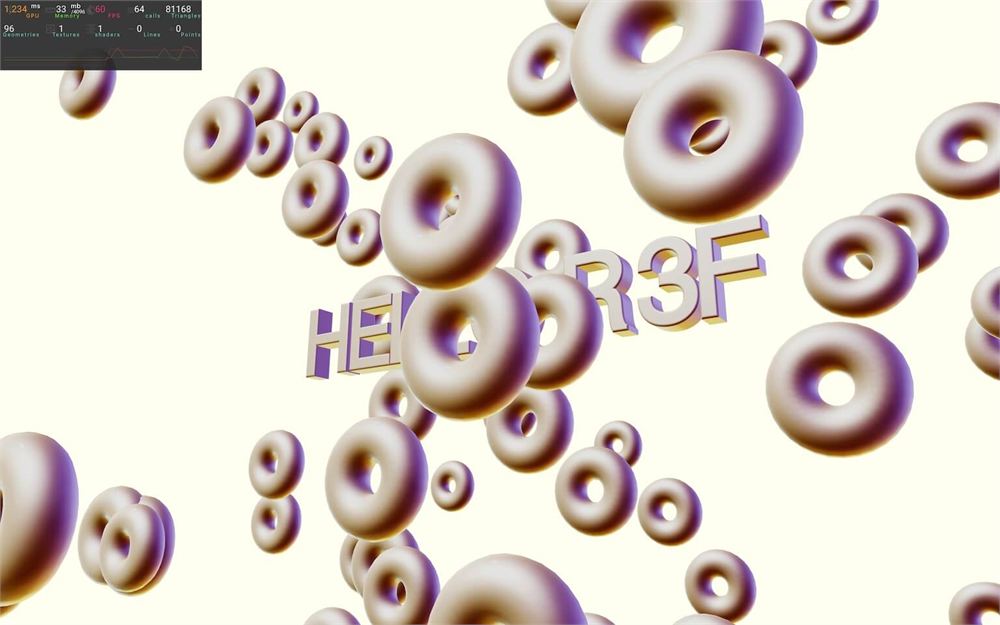
再给 rotation 添加:
{ [...Array(100)].map(() =>
    <mesh
        position={ [
            (Math.random() - 0.5) * 10,
            (Math.random() - 0.5) * 10,
            (Math.random() - 0.5) * 10
        ] }
        scale={ 0.2 + Math.random() * 0.2 }
        rotation={ [
            Math.random() * Math.PI,
            Math.random() * Math.PI,
            0
        ] }
    >
        <torusGeometry />
        <meshMatcapMaterial matcap={ matcapTexture } />
    </mesh>
) }
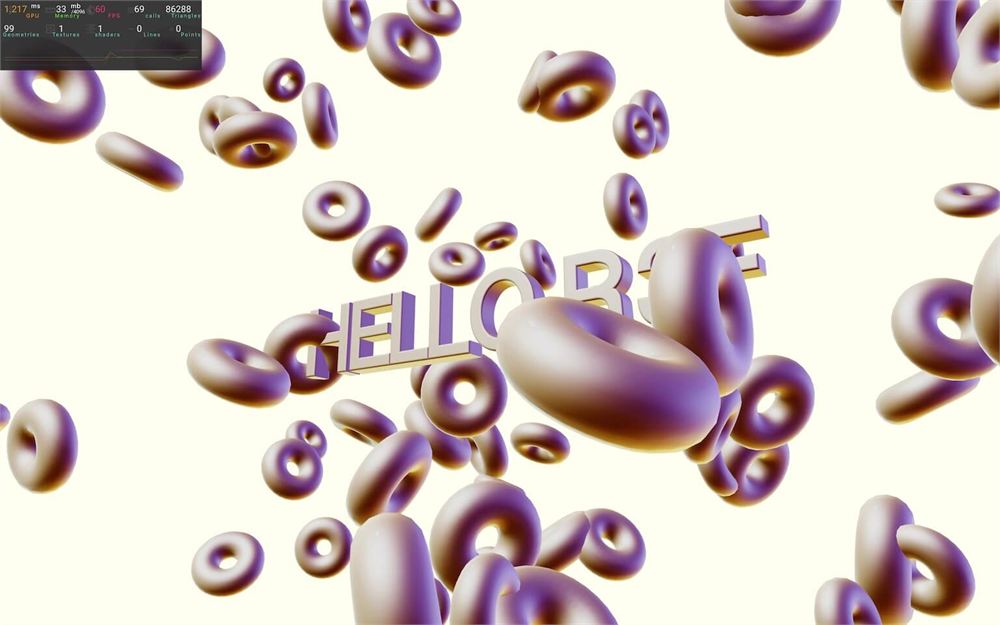
我们有了甜甜圈,但如果你检查控制台,应该会看到一个由 React 触发的警告:
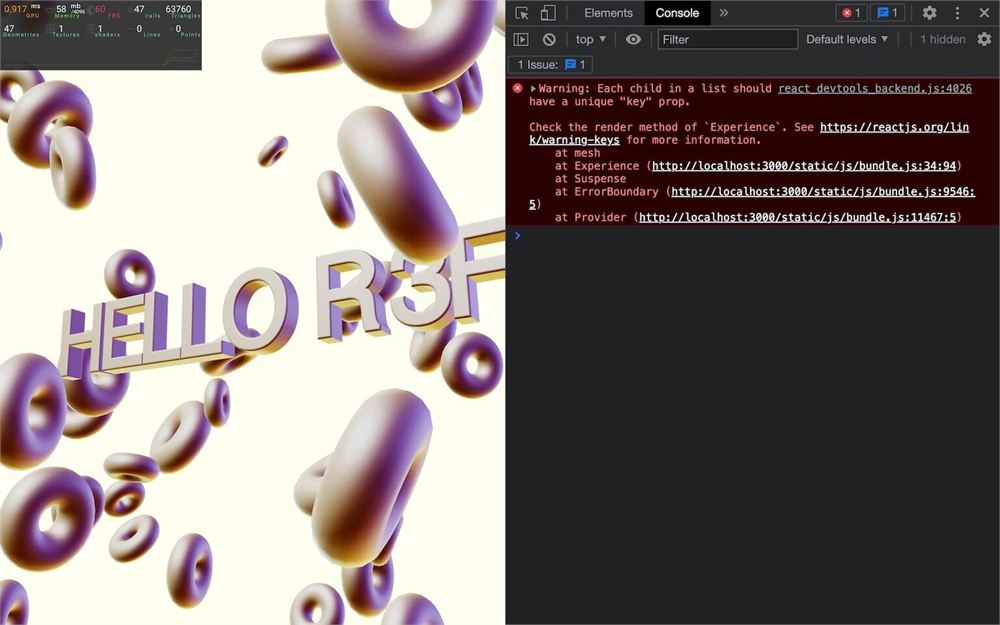
这是因为我们在循环中创建 component,但忘记给这些 component 设置 key。
在这里,我们没有唯一的 ID。这个警告甚至都不相关,因为我们不会去操作数组、更改元素顺序等。
面对现实吧,知道我们留下了一个警告,我们会睡不着的。我们需要摆脱它。
通过设置两个参数(value 和 index)从 map 中获取 index,并在 key 属性上使用这个 index:
{ [...Array(100)].map((value, index) =>
    <mesh
        key={ index }
        position={ [
            (Math.random() - 0.5) * 10,
            (Math.random() - 0.5) * 10,
            (Math.random() - 0.5) * 10
        ] }
        scale={ 0.2 + Math.random() * 0.2 }
        rotation={ [
            Math.random() * Math.PI,
            Math.random() * Math.PI,
            0
        ] }
    >
        <torusGeometry />
        <meshMatcapMaterial matcap={ matcapTexture } />
    </mesh>
) }
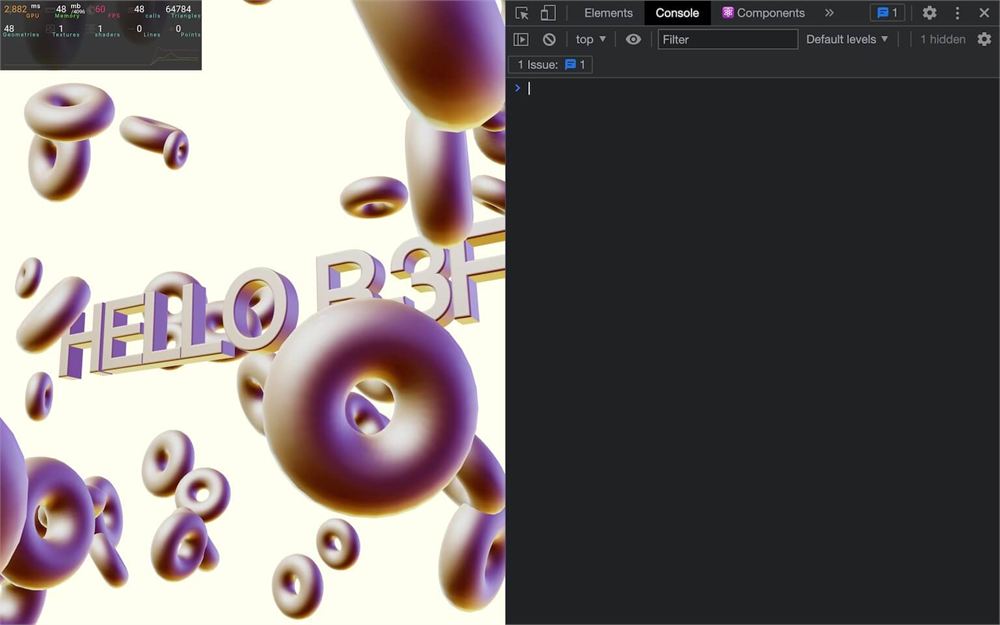
优化
我们的小实验看起来完成了,但我们忘了些重要的事情。
我们犯了性能方面的错误,这在性能监控中一目了然。
几何体
我们有很多几何体,尽管我们本应只有两个(甜甜圈和文字)。
为了解决这个问题,我们将分 3 个步骤做一个有点傻的技巧:
- 在甜甜圈外部创建一个
<torusGeometry>。也就是说它不会与任何东西关联。 - 使用
useState存储它。 - 从状态中把它重新放到甜甜圈的
<mesh>上。
这会有点难,但别担心,我们马上就会看到一个更简单的解决方案。
从 react 导入 useState:
import { useState } from 'react'用 useState 创建一个 torusGeometry 和 setTorusGometry 状态:
export default function Experience()
{
    const [ torusGeometry, setTorusGeometry ] = useState()

    // ...
}
把 <torusGeometry> 移到 <mesh> 和 map 的外部(这会破坏当前的 torus):
<torusGeometry args={ [ 1, 0.6, 16, 32 ] } />

{ [...Array(100)].map((value, index) =>
    <mesh
        key={ index }
        position={ [
            (Math.random() - 0.5) * 10,
            (Math.random() - 0.5) * 10,
            (Math.random() - 0.5) * 10
        ] }
        scale={ 0.2 + Math.random() * 0.2 }
        rotation={ [
            Math.random() * Math.PI,
            Math.random() * Math.PI,
            0
        ] }
    >
        <meshMatcapMaterial matcap={ matcapTexture } />
    </mesh>
) }
把 setTorusGometry 函数传给 <torusGeometry> 的 ref:
<torusGeometry ref={ setTorusGeometry } />当把一个函数传给 ref 属性时,React 会以 component 作为参数调用那个函数,这看起来有点像是 setTorusGometry(<torusGeometry>)(尽管这段代码不会生效,只是用来解释)。
最后,变量 torusGeometry 现在包含了 <torusGeometry>,我们可以用 geometry 属性把它传给我们的 <mesh>:
<mesh
    key={ index }
    geometry={ torusGeometry }
    position={ [
        (Math.random() - 0.5) * 10,
        (Math.random() - 0.5) * 10,
        (Math.random() - 0.5) * 10
    ] }
    scale={ 0.2 + Math.random() * 0.2 }
    rotation={ [
        Math.random() * Math.PI,
        Math.random() * Math.PI,
        0
    ] }
>
    <meshMatcapMaterial matcap={ matcapTexture } />
</mesh>
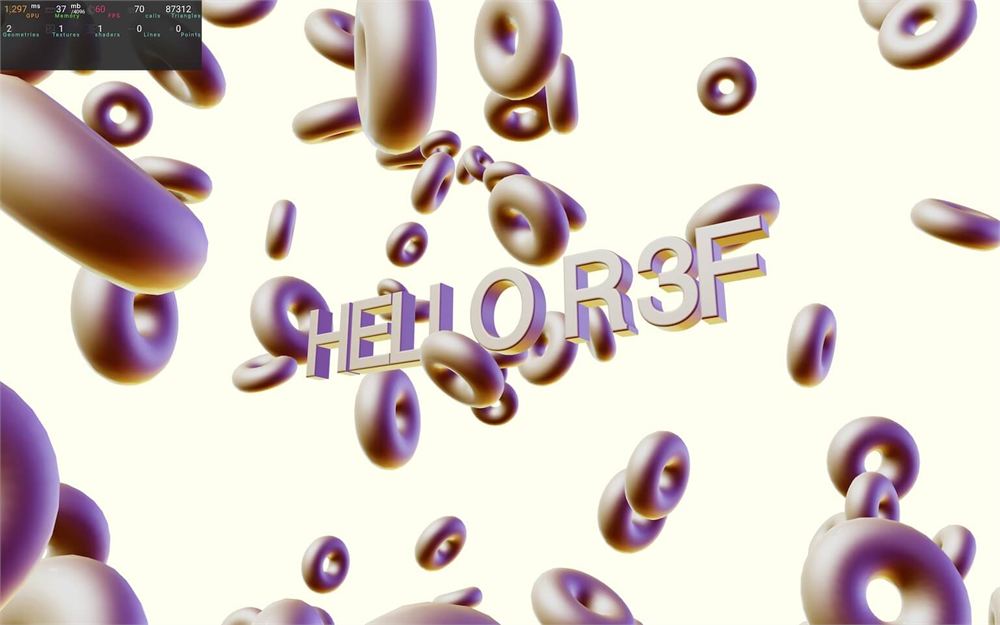
有点棘手,但我们现在整个场景只有两个几何体了(文字和一个 torus)。
材质
如果你查看性能监控中的“shaders”,你会看到只有一个 shader,那是因为 Three.js 在可能的情况下会自动复用 shader。
我们可以就这样放着,但让我们像对待几何体那样把材质分离出来,这样我们只对文字和甜甜圈使用一个材质。
我们将用对待几何体时相同的技巧,借助 useState 来实现。
把 <meshMatcapMaterial> 移出甜甜圈的 <mesh>,并且也把它从 <Text3D> 中移除:
<torusGeometry ref={ setTorusGeometry } />
<meshMatcapMaterial matcap={ matcapTexture } />

<Center>
    <Text3D
        font="./fonts/helvetiker_regular.typeface.json"
        size={ 0.75 }
        height={ 0.2 }
        curveSegments={ 12 }
        bevelEnabled
        bevelThickness={ 0.02 }
        bevelSize={ 0.02 }
        bevelOffset={ 0 }
        bevelSegments={ 5 }
    >
        HELLO R3F
    </Text3D>
</Center>

{ [...Array(100)].map((value, index) =>
    <mesh
        key={ index }
        geometry={ torusGeometry }
        position={ [
            (Math.random() - 0.5) * 10,
            (Math.random() - 0.5) * 10,
            (Math.random() - 0.5) * 10
        ] }
        scale={ 0.2 + Math.random() * 0.2 }
        rotation={ [
            Math.random() * Math.PI,
            Math.random() * Math.PI,
            0
        ] }
    />
) }
用 useState 创建一个 material 和 setMaterial 状态:
export default function Experience()
{
    const [ torusGeometry, setTorusGeometry ] = useState()
    const [ material, setMaterial ] = useState()

    // ...
}
把 setMaterial 传给 <meshMatcapMaterial> 的 ref 属性
<meshMatcapMaterial ref={ setMaterial } matcap={ matcapTexture } />把 material 状态传给 <Text3D> 和甜甜圈 <mesh> 的 material 属性:
<torusGeometry ref={ setTorusGeometry } />
<meshMatcapMaterial ref={ setMaterial } matcap={ matcapTexture } />

<Center>
    <Text3D
        material={ material }
        font="./fonts/helvetiker_regular.typeface.json"
        size={ 0.75 }
        height={ 0.2 }
        curveSegments={ 12 }
        bevelEnabled
        bevelThickness={ 0.02 }
        bevelSize={ 0.02 }
        bevelOffset={ 0 }
        bevelSegments={ 5 }
    >
        HELLO R3F
    </Text3D>
</Center>

{ [...Array(100)].map((value, index) =>
    <mesh
        key={ index }
        geometry={ torusGeometry }
        material={ material }
        position={ [
            (Math.random() - 0.5) * 10,
            (Math.random() - 0.5) * 10,
            (Math.random() - 0.5) * 10
        ] }
        scale={ 0.2 + Math.random() * 0.2 }
        rotation={ [
            Math.random() * Math.PI,
            Math.random() * Math.PI,
            0
        ] }
    />
) }
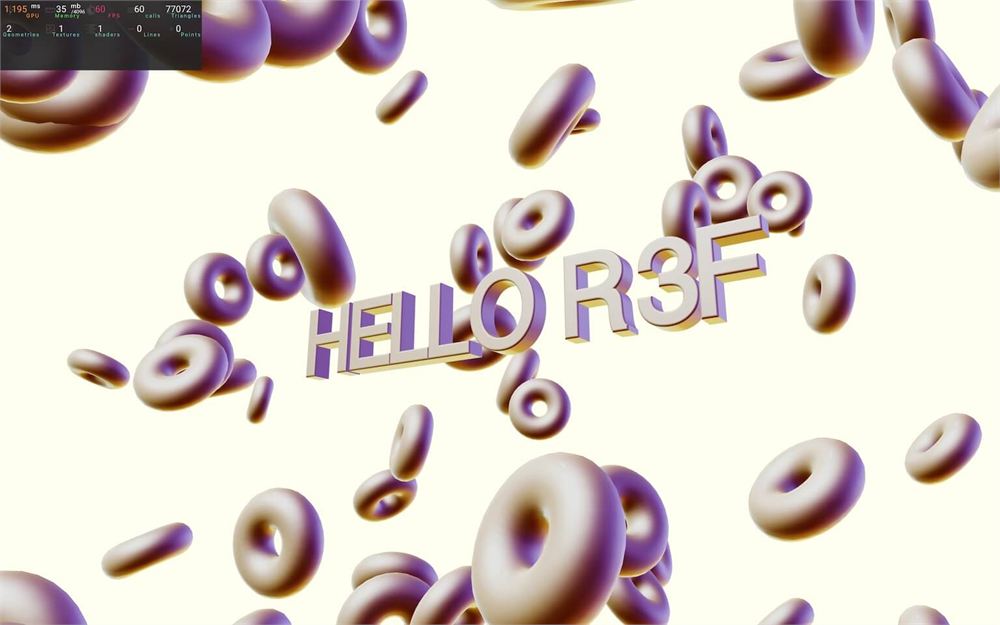
没有视觉上的差异,但现在一切都设置好了,很干净。
更简单的解决方案
尽管它有效,但这样使用 useState 有点牵强,会让你的代码变得比应有的更复杂。
正如我们在之前的课程中看到的,没有什么阻止我们在 component 函数外部创建变量。
我们将使用老派的 Three.js 在 Experience 函数之前创建几何体和材质。
首先,移除或注释掉 torusGeometry 和 material 状态(代码应该会报错):
export default function Experience()
{
    // const [ torusGeometry, setTorusGeometry ] = useState()
    // const [ material, setMaterial ] = useState()

    // ...
}
然后移除或注释掉 <torusGeometry> 和 <meshMatcapMaterial>(仍然报错):
{/* <torusGeometry ref={ setTorusGeometry } /> */}
{/* <meshMatcapMaterial ref={ setMaterial } matcap={ matcapTexture } /> */}
既然我们要使用原生 Three.js,让我们从 three 导入 THREE:
import * as THREE from 'three'现在,我们可以实例化一个 TorusGeometry 并赋值给 torusGeometry 变量,以及一个 MeshMatcapMaterial 并赋值给 material 变量,但要在 Experience 函数外部:
const torusGeometry = new THREE.TorusGeometry(1, 0.6, 16, 32)
const material = new THREE.MeshMatcapMaterial()

export default function Experience()
{
    // ...
}
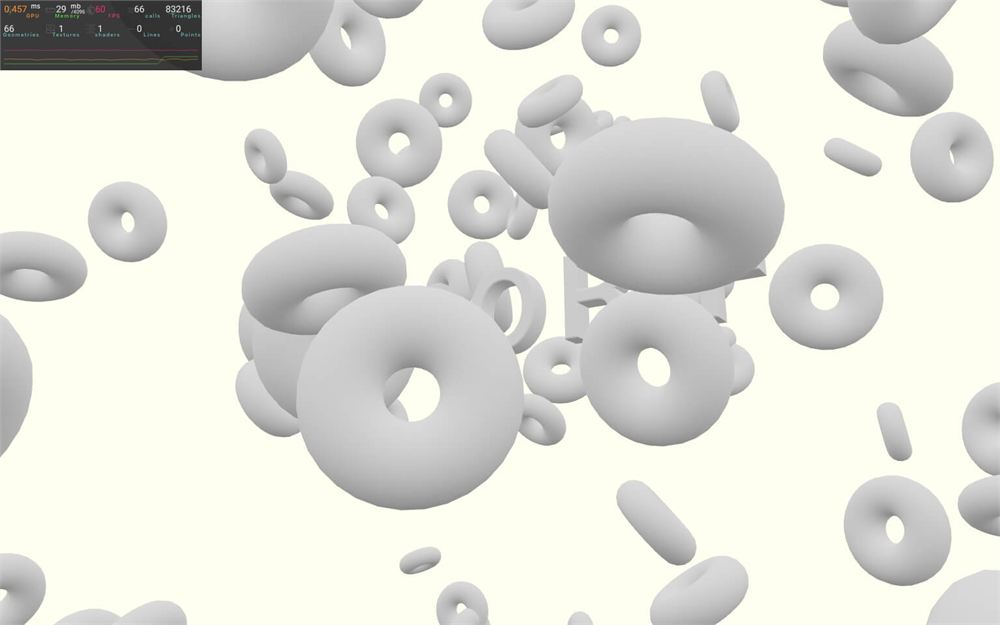
好消息是我们已经能看到一些东西了。坏消息是我们丢失了 matcap 纹理。
不幸的是,matcapTexture 只在 Experience 函数中可用,而该函数会在 component 被渲染时触发。
既然我们只想应用一次纹理,我们将使用 useEffect。
从 react 导入 useEffect:
import { useEffect, useState } from 'react'在 Experience 中用一个空的依赖数组调用 useEffect,这样它只会在 component 第一次渲染时被调用:
export default function Experience()
{
    // ...

    useEffect(() =>
    {
    }, [])

    // ...
}
在 useEffect 中,我们可以把 matcapTexture 赋值给 material 的 matcap 属性。我们还要用 needsUpdate 属性告诉材质它需要被更新:
useEffect(() =>
{
    material.matcap = matcapTexture
    material.needsUpdate = true
}, [])
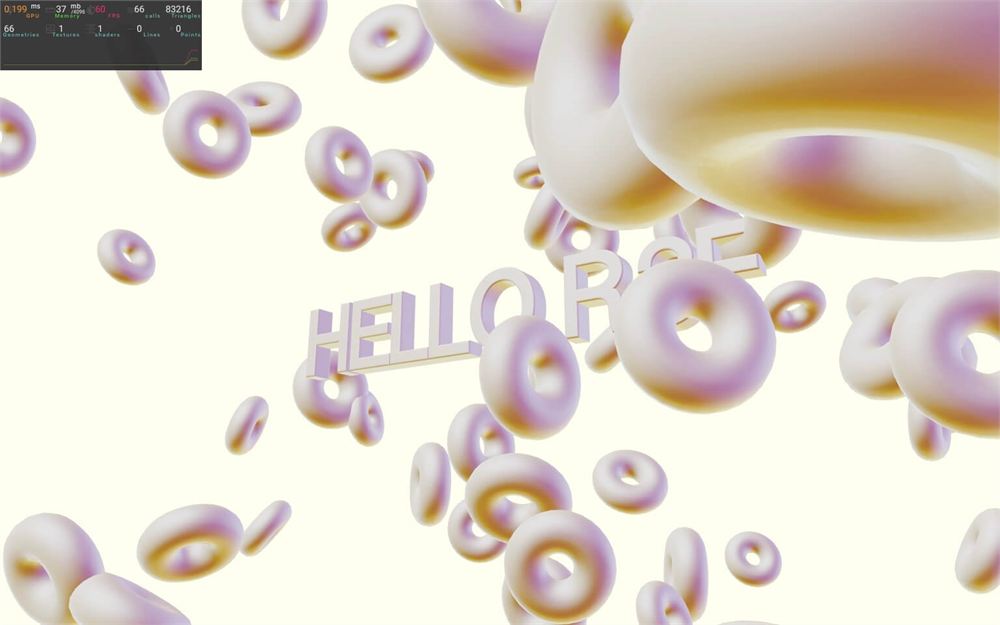
我们就快完成了,但如你所见,纹理看起来太亮了。这是因为当我们在 <meshMatcapMaterial> 中使用 matcapTexture 时,R3F 自动更改了它的 colorSpace,我们需要手动完成。
把 matcapTexture 的 colorSpace 设置为 THREE.SRGBColorSpace,并且也把它的 needsUpdate 属性设置为 true:
useEffect(() =>
{
    matcapTexture.colorSpace = THREE.SRGBColorSpace
    matcapTexture.needsUpdate = true

    material.matcap = matcapTexture
    material.needsUpdate = true
}, [])
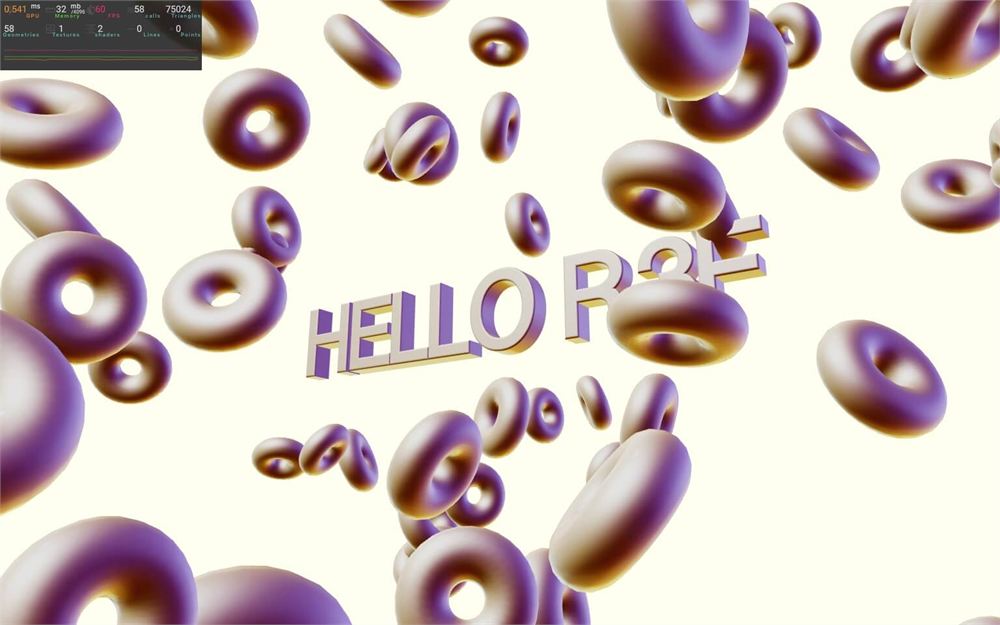
一切都按预期工作了。
如你所见,在 component 外部创建变量可以让事情更容易,比如 torusGeometry,但也会让事情更难,比如 material。这取决于你、你的项目以及你的偏好。
让甜甜圈动起来
我们已经达到了最初在不使用 R3F 时所实现的效果。
如你所见,这更容易,而且代码很简约。既然太简单了,让我们再进一步,让甜甜圈动起来。
访问甜甜圈
我们将在 useFrame 中让甜甜圈动起来,但这意味着我们需要对它们的引用。
在 React 中引用多个对象有点棘手。
我们将先测试一种“傻”技巧,通过让甜甜圈动起来证明它能工作,然后再测试一种更合适的技巧。
使用 group 作为引用
我们将使用一个 <group> 作为甜甜圈的父级,这样我们就可以通过它的 children 属性引用所有甜甜圈。
在甜甜圈周围创建 <group>:
<group>
    { [...Array(100)].map((value, index) =>
        {/* ... */}
    ) }
</group>
从 react 导入 useRef:
import { useRef, useEffect, useState } from 'react'创建一个名为 donutsGroup 的引用:
export default function Experience()
{
    const donutsGroup = useRef()

    // ...
}
用 ref 属性把它与 group 关联起来:
<group ref={ donutsGroup }>
    { [...Array(100)].map((value, index) =>
        {/* ... */}
    ) }
</group>
更新甜甜圈
我们现在可以像访问 donutsGroup 引用的 children 那样访问甜甜圈了。记住,每一个继承自 Object3D 的 class(Group 就是这种情况)都有一个 children 属性。
为了给这些 children 添加动画,我们首先需要从 @react-three/fiber 导入 useFrame:
import { useFrame } from '@react-three/fiber'在 Experience 中调用它并传入一个函数:
export default function Experience()
{
    // ...

    useFrame(() =>
    {
    })

    // ...
}
取出 state 和 delta 参数(我们不需要 state,但如果想访问 delta 就必须设置它):
useFrame((state, delta) =>
{
})
用 for … of 遍历 donutsGroup.current 的 children(别忘了 current,因为它是一个引用),并用 delta 更新它们的 rotation.y 属性:
useFrame((state, delta) =>
{
    for(const donut of donutsGroup.current.children)
    {
        donut.rotation.y += delta * 0.2
    }
})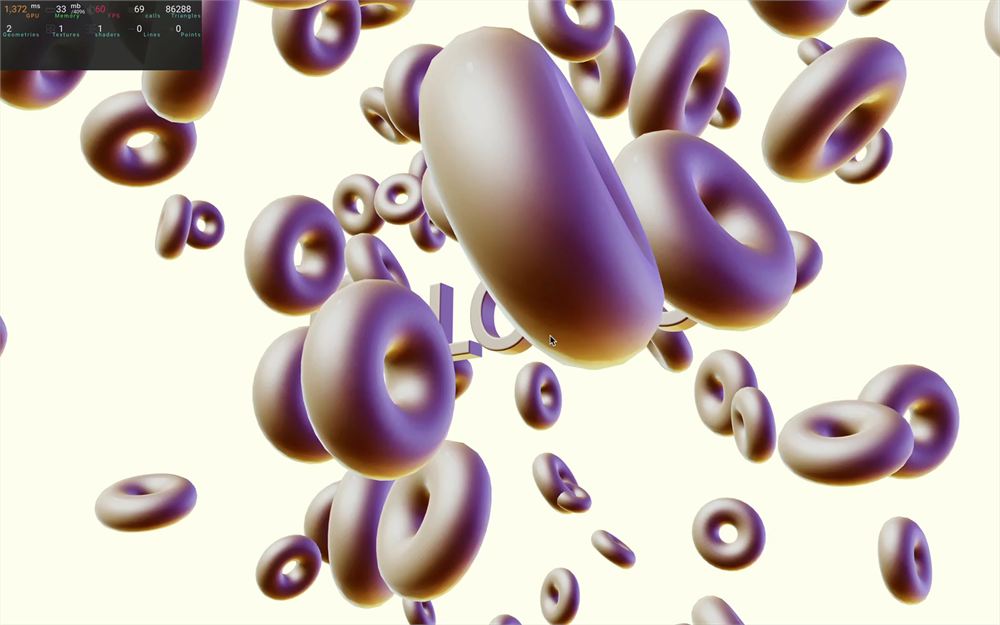
就这样,甜甜圈在旋转了。
用一个数组作为引用
<group> 的问题在于,它唯一的用途是弥补一个结构上的缺陷。我们并不需要一个 Group,我们想要的只是一种能遍历甜甜圈的方法。
让我们看看如何摆脱 <group>,同时仍然能通过一个引用访问甜甜圈。
首先,我们需要明白,引用只是一个带有 current 属性的对象,该属性包含我们想要保存和保留的内容。
知道了这一点,我们将创建一个引用,让其 current 是一个空数组,然后我们自己去把甜甜圈添加进那个数组。
首先,让我们做点清理,移除 donutGroup 引用、<group> 以及 useFrame 里面的循环。
然后,用 useRef 创建一个 donuts 引用,并传入一个空数组作为参数:
export default function Experience()
{
    const donuts = useRef([])

    // ...
}
给 useRef 传入一个值会将该值设置为引用的默认 current 属性。
现在,对于甜甜圈的 <mesh>,我们将添加一个 ref 属性,但传给它一个函数。
{ [...Array(100)].map((value, index) =>
    <mesh
        ref={ () => {} }
        // ...
    />
) }
React 会调用这个函数,并把实际的 component 作为参数传入。
然后我们可以用 push() 把它保存到 donuts 的 donuts.current 属性中,因为它是一个简单的数组:
<mesh
    ref={ (element) => donuts.current.push(element) }
    // ...
/>
但我们犯了一个错误。
每次渲染 Experience component 时,甜甜圈都会被添加到引用中。
即使它涉及的是同样的甜甜圈,而且 R3F 知道它不应该创建一个新的甜甜圈,我们的引用仍会不断被同样的甜甜圈填满。
为了解决这个问题,我们可以使用 map 的 index 把元素添加到数组中特定位置:
{ [...Array(100)].map((value, index) =>
    <mesh
        ref={ (element) => donuts.current[index] = element }
        // ...
    />
) }
现在我们不用借助傻技巧就拥有了对甜甜圈的引用。
我们可以回到 useFrame 并再次做循环来更新旋转,但这次是在 donuts.current 数组上。
useFrame((state, delta) =>
{
    for(const donut of donuts.current)
    {
        donut.rotation.y += delta * 0.2
    }
})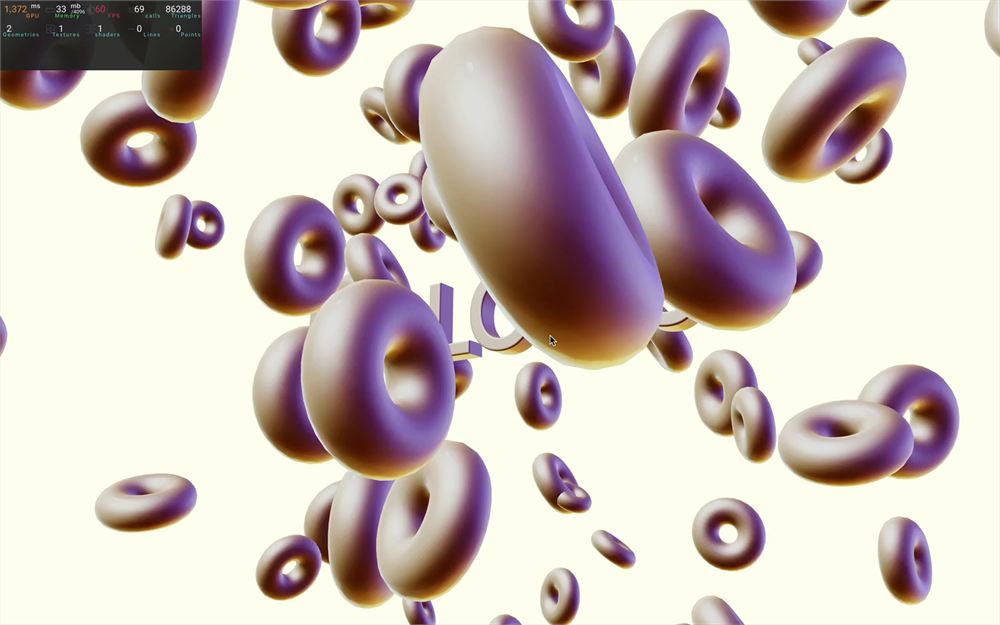
一切工作方式都相同,但没有在甜甜圈之上额外加一个 <group> 的代价。